Tuesday, November 19, 2019

HTML 2nd Day Lessons

Different Between HTML & HTML 5

Basis of Difference
HTML
HTML 5.0
Running of JavaScript
Allows JavaScript to perform only in the interface of the browser. It does not run originally in the background of the browser.
The JavaScript code can run in the browser’s background itself via the JS web worker API.
Support for multimedia tags
Does not allow the inclusion or running of audio <audio> and/or video <video> tags in its programs.
Allows the inclusion and performance of video and audio controls and tags.
Support for visualization linked to shapes
Does not support the drawing of different shapes (triangles, circles, rectangles, etc.) in the older HTML versions.
HTML5 supports the drawing of different shapes (triangles, circles, rectangles, etc.)
Mobile-friendliness
Older HTML versions provide lesser mobile-friendly features.
HTML5 is a comparatively more mobile-friendly language.
Support for vector graphics
Offers support for vector graphics exclusively with programs like Silver-light, Flash and VML.
HTML 5 allows support and usage of virtual vector graphics even without the support of programs of the likes of Silver-light, Flash and VML.
Simplicity of doctype declaration
Doctype declaration is long and complicated in case of HTML.
<!DOCTYPE HTML PUBLIC "-//W3C//DTD HTML 4.01//EN" "http://www.w3.org/TR/html4/strict.dtd">
Doctype declaration is comparatively quite simple and easy to understand in HTML 5.
<!DOCTYPE html>
Complexity of character encoding
Character encoding is complicated and lengthy in HTML.
Character encoding is very simple and easy to decipher in HTML 5.
Storage of data
Uses cookies for the cause of storing temporary data.
Uses SQL databases and related application cache memory for storing the offline data.
Tracking of the GeoLocation of users
Tracking the GeoLocation of users browsing specific websites via HTML is nearly impossible.
The GeoLocation of users can be easily tracked in HTML 5 courtesy the JS GeoLocation API.
Elimination of elements
Most originally launched elements are present in the older HTML.
Elements of the likes of tt, big, dir, basefont, strike, frame, frameset, noframes, applet, isindex, font, center, acronym, as well as many other deprecated elements have been eliminated completely in HTML 5.
Absence of attributes (sync, charset and ping)
Attributes such as async, charset and ping are not a part of HTML.
Attributes such as async, charset and ping form an important part of HTML 5.
Parsing rules and cross-platform compatibility
The rules for parsing are less efficient in HTML. The overall compatibility present across different platforms is obsolete.
HTML 5 has better rules for parsing and showcases sound compatibility across different platforms.
Drag and Drop
HTML disallows drag and drop effects.
HTML5 features drag and drop effects.
Use of Inline SVG and MathML
Inline SVG and MathML cannot be used in-line with text in HTML.
In HTML5, inline SVG and MathML are capable of being used in text.
Support for new form controls
HTML does not provide any support for newly introduced form controls.
HTML5 supports different new types of form controls such as date and time, range, tel, email, number, url, search, etc.
Presence of new elements
The new elements contained in HTML 5 are absent in HTML.
HTML 5 contains several new elements. These include summary, time, aside, datalist, details, embed, audio, command, data, footer, header, article, wbr, figcaption, figure, mark, meter, nav, hgroup, bdi, canvas, output, progress, rp, keygen, rt, track, video, ruby, section, source, etc.
Presence of new attributes
New attributes like tabindex, id, repeat, etc. are absent for use in HTML.
Tabindex, id, repeat, etc. are certain attributes that are applicable to HTML 5.0 elements.


HTML Sample Codings

<!DOCTYPE html>
<html>
<head>
<title>Page Title</title>
</head>
<body>
<h1>This is a Heading</h1>
<p>This is a paragraph.</p>
</body>
</html>


HTML Basic Tags

  • <html> ... </html> - The root element
  • <head> ... </head> - The document head
  • <title> ... </title> - The page title
  • <body> ... </body> - The page’s content
  • <h1> ... </h1> - A section heading
  • <p> ... </p> - A paragraph
  • <a> ... </a> - A link
  • <br> - Insert a single line break
  • <p> - Define the Paragraph
  • <img> - add An image
  • <div> ... </div> - A block-level container for content
  • <!--...--> - Defines a Comments
  • <span> ... </span> - An inline container for content

Monday, November 18, 2019

Day 6

Atom (text editor)

  • Atom is a free and open-source and source code editor for macOS, Linux, and Microsoft Windows with support for plug-ins written in Node.js, and embedded Git Control, developed by GitHub.
  • Atom is a desktop application built using web technologies.
  • Most of the extending packages have free software licenses and are community-built and maintained.
  • Atom is based on Electron (formerly known as Atom Shell), a framework that enables cross-platform desktop applications using Chromium and Node.js.

Sunday, November 17, 2019

Day 5

Python Flowcharts

Flowchart is a diagrammatic representation of an algorithm. Flowchart are very helpful in writing program and explaining program to others.

Symbols Used In Flowchart

Different symbols are used for different states in flowchart, For example: Input/Output and decision making has different symbols. The table below describes all the symbols that are used in making flowchart

Examples of flowcharts in programming

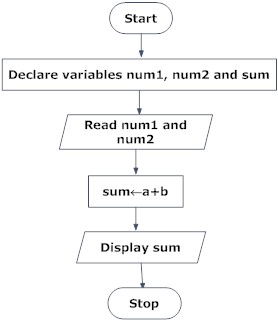
Draw a flowchart to add two numbers entered by user.
SymbolPurposeDescription
Flowline symbol in flowchart of programmingFlow lineUsed to indicate the flow of logic by connecting symbols.
Terminal symbol in flowchart of programmingTerminal(Stop/Start)Used to represent start and end of flowchart.
Input/Output symbol in flowchart of programmingInput/OutputUsed for input and output operation.
Processing symbol in flowchart of programmingProcessingUsed for airthmetic operations and data-manipulations.
Decision making symbol in flowchart of programmingDesicionUsed to represent the operation in which there are two alternatives, true and false.
On-page connector symbol in flowchart of programmingOn-page ConnectorUsed to join different flowline
Off-page connector symbol in flowchart of programmingOff-page ConnectorUsed to connect flowchart portion on different page.
Predefined process symbol in flowchart of programmingPredefined Process/FunctionUsed to represent a group of statements performing one processing task.

Examples of flowcharts in programming

Draw a flowchart to add two numbers entered by user.
Flowchart to add two numbers in programming

Day 5

Python Tasks - Pseudocode

What is pseudocode?

Pseudocode is a method of planning which enables the programmer to plan without worrying about syntax.
Pseudocode (sometimes written as pseudo-code) is a description of the source code of a computer program or an algorithm in a language easily understood by humans.
It uses the general structure of a computer programming language, but omits details that are required by machines to execute the code. The primary purpose of writing pseudocode is to enable humans to understand the computer program or algorithm without having to understand the programming language.

Python Keywords
  • Keywords are the reserved words in Python.
  • We cannot use a keyword as a variable name, function name or any other identifier. They are used to define the syntax and structure of the Python language.
  • In Python, keywords are case sensitive.
  • There are 33 keywords in Python 3.7. This number can vary slightly in the course of time.
  • All the keywords except True, False and None are in lowercase and they must be written as it is. The list of all the keywords is given below.

How to write a Pseudo-code?

  1. Arrange the sequence of tasks and write the pseudocode accordingly.
  2. Start with the statement of a pseudo code which establishes the main goal or the aim.
    Example:
This program will allow the user to check the number whether it's even or odd.

The way the if-else, for, while loops are indented in a program, indent the statements likewise, as it helps to comprehend the decision control and execution mechanism. They also improve the readability to a great extent.

Example:

if "1"
    print response
        "I am case 1"

if "2"
    print response
        "I am case 2"

Day 4

Node js : 

What is Node.js?

  • Node.js is an open source server environment
  • Node.js is free
  • Node.js runs on various platforms (Windows, Linux, Unix, Mac OS X, etc.)
  • Node.js uses JavaScript on the server

A common task for a web server can be to open a file on the server and return the content to the client.

Here is how PHP or ASP handles a file request:
  • Sends the task to the computer's file system.
  • Waits while the file system opens and reads the file.
  • Returns the content to the client.
  • Ready to handle the next request.
Here is how Node.js handles a file request:
  1. Sends the task to the computer's file system.
  2. Ready to handle the next request.
  3. When the file system has opened and read the file, the server returns the content to the client.
Node.js eliminates the waiting, and simply continues with the next request.

Node.js runs single-threaded, non-blocking, asynchronously programming, which is very memory efficient.

What Can Node.js Do?
  1. Node.js can generate dynamic page content
  2. Node.js can create, open, read, write, delete, and close files on the server
  3. Node.js can collect form data
  4. Node.js can add, delete, modify data in your database


Wednesday, November 13, 2019

Day 4


CSS : 
What is CSS?
  • CSS stands for Cascading Style Sheets
  • CSS describes how HTML elements are to be displayed on screen, paper, or in other media
  • CSS saves a lot of work. It can control the layout of multiple web pages all at once
  • External stylesheets are stored in CSS files

CSS Syntax

A CSS rule-set consists of a selector and a declaration block:
The selector points to the HTML element you want to style.
The declaration block contains one or more declarations separated by semicolons.
Each declaration includes a CSS property name and a value, separated by a colon.
A CSS declaration always ends with a semicolon, and declaration blocks are surrounded by curly braces. 
We can add CSS in an HTML file in 3 different ways:
  1. Inline css
  2. Internal or Embedded css
  3. External css

Tuesday, November 12, 2019

Day 4

Programming Laguages


        A programming language is a vocabulary and set of grammatical rules for instructing a computer or computing device to perform specific tasks. The term programming language usually refers to high-level languages, such as 

Front End Languages :
  • HTML
  • Python
  • CSS
  • Node JS
  • PHP
  • Java Script
Back end Languages :
  • Java
  • PHP
Database Languages :
  • My SQL
  • SQL
Image result for html pngHTML : 
  • HTML is not a Programming Languages. This is a markup language.
  • HTML stands for Hyper Text Markup Language.
  • HTML describes the structure of a Web page.
  • HTML consists of a series of elements.
  • HTML elements tell the browser how to display the content.
  • HTML elements are represented by tags.
  • HTML tags label pieces of content such as "heading", "paragraph", "table", and so on Browsers do not display the HTML tags, but use them to render the content of the page.

Basic Coding
        <html>

        <head>

        <title>Page Title</title>
        </head>
        <body>

        <h1>My First  Heading</h1>
        <p>My first paragraph.</p>

        </body>
        </html>


Python : 
  • Python is an interpreted, object-oriented, high-level programming language with dynamic semantics.
  • Its high-level built in data structures, combined with dynamic typing and dynamic binding, make it very attractive for Rapid Application Development, as well as for use as a scripting or glue language to connect existing components together.

Day 4

Types of Computer Language

Translator

     There are mainly three Types of translators which are used to translate different programming languages into machine equivalent code:
    Related image
  1. Assembler
  2. Compiler
  3. Interpreter

Assembler :

     An assembler translates assembly language into machine code.
Assembly language consists of Mnemonics for machine Op-codes, so assemblers perform a 1:1 translation from mnemonic to a direct instruction. For example, LDA #4 converts to 0001001000100100. 

Conversely, one instruction in a high level language will translate to one or more instructions at machine level.

Advantages of using Assembler

Here are list of advantages of using assembler:
  • Very fast in translating assembly language to machine code as 1 to 1 relationship
  • Assembly code is often very efficient (and therefore fast) because it is a low level language
  • Assembly code is fairly easy to understand due to the use of English like in Mnemonics

Disadvantages of using Assembler

  • Assembly language is written for a certain instruction set and/or processor.
  • Assembly tends to be optimised for the hardware it is designed for, meaning it is often incompatible with different hardware.
  • Lots of assembly code is needed to do relatively simple task, and complex programs require lots of programming time compiler.

Compiler :

     Compiler is a computer program that translates code written in a high level language to a low level language, object/machine code.

The most common reason for translating source code is to create an executable program (converting from high level language into machine language).

Advantages of using Compiler

Below are the list of advantages of using compiler:
  • Source code is not included, therefore compiled code is more secure than interpreted code.
  • Tends to produce faster code and interpreting source code.
  • Producers and executable file, and therefore the program can be run without need of the source code.

Disadvantages of using Compiler

Below are the list of disadvantage of using compiler:
  • Object code needs to be produced before A final executable file, this can be a slow process.
  • The source code Must Be 100% correct for the executable file to be produced.

Interpreter :

     An interpreter program execute other programs directly, running through program code and executing it line-by-line. As it analyses every line, an interpreter is slower than running compiled code but it can take less time to interpret program code than to compile and then run it. This is very useful when prototyping and testing code.

Interpreters are written for multiple platforms, this means code written once can be run immediately on different systems without having to recompile for each. Examples of this include flash based web programs that will run on your PC, Mac, games console and mobile phone.

Advantages of using Interpreter

Here are the list of some main advantages of using an interpreter:
  • Easier to debug (check errors) than a compiler.
  • Easier to create multi-platform code, as each different platform would have an interpreter to run the same code.
  • Useful for prototyping software and testing basic program logic.

Disadvantages of using Interpreter

And here are the list of some main disadvantages of using an interpreter:
  • Source code is required for the program to be executed, and this source code can be read making it insecure.
  • Interpreters are generally slower than compiled programs due to the per-line translation method.

Day 4

Computer
Image result for computer png
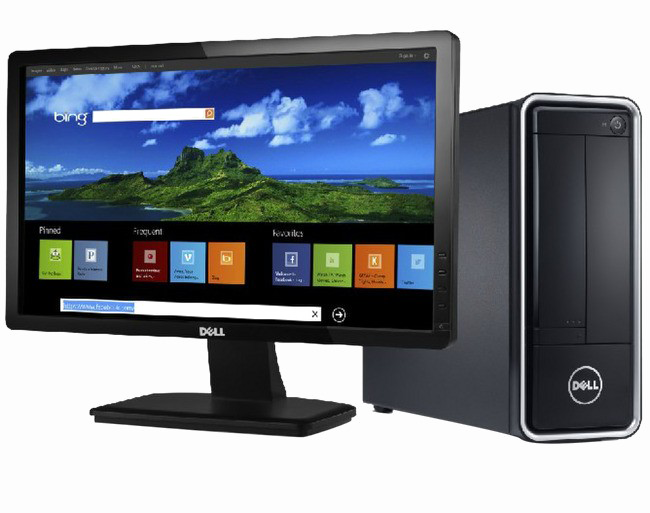
  • Computer is Electronic Programmable Device.
  • COMPUTER stands for Common Operating Machine Particularly Used For Trade Education And Research. Advertisement: This definition appears very frequently.
  • Computer can not do anything without a Program.
  • Charles Babbage is called the "Grand Father" of the computer.
Image result for computer processing unit diagram
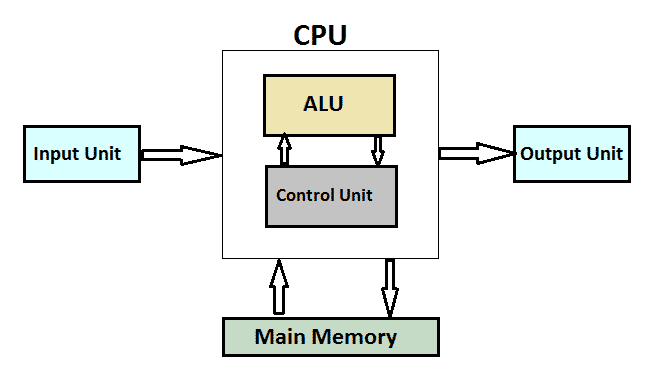
  • Computer is an advanced electronic device that takes raw data as input from the user and processes these data under the control of set of instructions (called program) and gives the result (output) and saves output for the future use. It can process both numerical and non-numerical (arithmetic and logical) calculations.

Input (Data):

Input is the raw information entered into a computer from the input devices. It is the collection of letters, numbers, images etc.

Process: 

Process is the operation of data as per given instruction. It is totally internal process of the computer system.

Output:

Output is the processed data given by computer after data processing. Output is also called as Result. We can save these results in the storage devices for the future use.

Day 3

Ubuntu Terminals nano Text Editor Shortcut

01) Ctrl + X : Close the current file buffer / Exit from nano.

02) Ctrl + G : Display the help text.

03) Ctrl + O : Write the current file to disk/ Save File.

04) Ctrl + J : Justify the current paragraph.

05) Ctrl + R : Insert another file into the current one.

06) Ctrl + Y : Move to the previous screen.

07) Ctrl + V : Move to the next screen.

08) Ctrl + K : Cut the current line and store it in the cutbuffer.

09) Ctrl + U : Uncut from the cutbuffer into the current line.

10) Ctrl + C : Display the position of the cursor.

11) Ctrl + T : Invoke the spell checker, if available.

12) Ctrl + P : Move to the previous line.

13) Ctrl + N : Move to the next line.

14) Ctrl + A : Move to the beginning of the current line.

15) Ctrl + E : Move to the end of the current line.

16) Ctrl + B : Move back one Character.

17) Ctrl + D : Delete the character Under the Curser

18) Ctrl + 0 : Fit the Window.

19) Ctrl + _ : Minimize the Wimdow.

20) F11 : Full Screen.

21) Ctrl + Z : Susband.

22) Ctrl + \ : Replace.

23) Alt + \ : Move to the first line of the file.

24) Alt + / : Move to the last line of the file.

25) Alt + E : Undo.

26) Alt + U : Redo.

27) Ctrl + Y : Go to First Line.

28) Alt + W : Repeat.

29) Alt + A : Selection mode.

30) Alt + 6 : Copy.

31) Ctrl + 7 : Screen full up.

32) Ctrl + 8 : Screen full down.

33) Ctrl + \ : Replace.

34) Ctrl + L : Refresh.

35) Ctrl + G : Display to help set.

36) Ctrl +  : Forward word.

37) Alt + /= : Go first line.

Day 3

From Our Uki Class Programms at 08-11-2019

  • Our Lecturer Introduced Klavaro
Klavaro


  • Klavaro is a program that teachs you to touch type and/or helps you to improve your skills with the keyboard.
  • Features include:
    1. Internationalization: Czech, English, Esperanto, French (incomplete), German (incomplete), Hunganian, Portuguese and Swedish.
    2. Ready to use keyboard layouts:

      • "qwerty" (BR; BR_abnt0; BR_abnt2; CZ; EL; ES; HE; IT; PT; SE; US)
      • "Dvorak" (BR; FR; US; US_BR; US_ES; US_SE)
      • "qwertz" (CZ; DE; HU)
      • "azerty" (FR)
      • "jtsuken" (RU)
    1. Keyboard layout editor: makes possible to configure the keys' positions and to save the result in a simple text file. If your keyboard isn't shown above, you can create it. If you need to do it, please let us know about.
    2. Basic course: a basic type of course is available for memorizing the keys positions on the keyboard. It is supposed to be independent from keyboard layout, by the generation of random character sequences to be followed by the student.
    3. Adaptability exercises: these exercises use all the keys ramdonly, so that you can practice using all the keyboard. It's named adaptability exercise because it develops the capacity to adapt your typing skills to any kind of strange words that may appear in some texts.
    4. Velocity exercises: one achieves velocity on typing when the environment is well known, or, when the words come from one's own language. That's why these exercises focus on velocity. And even if your language isn't supported by the application, you still can indicate texts in any language to include the words contained there.
    5. Fluidness exercises: with these exercises, one works typing complete paragraphs, with good sense sentences. Typing errors aren't accepted: the user must correct them with the backspace key before be allowed to go on. Especial attention is given to the typing rhythm, which must be as uniform as possible. Just like the velocity exercises, this one here makes possible to load any text files, independently of language.
    6. Progress charts: at the accomplishment of each exercise, some characteristics of your performance are saved and can be graphically showed. Thus, you can easily observe your learning progress (or regress).
    7. Clean graphical interface: when learning to type correctly, one must not get the attention off the exercises. So, it isn't recommended neither to have dozens of gauges measuring velocity, errors, time, etc; nor a virtual keyboard floating in front of the student: he/she must memorize the key positions by the tact, not visually. Hence, Klavaro's interface started simple and will remain like that for all of its lifetime


From Our Uki Class Programms at 08-11-2019

Introduced Ubuntu Terminals Command

01) ls : List of you perticular folder or drive.

02) cd Documents : Go to Documents Folder with cd Command.

03) cd.. : Go to Back.

04) cd : Automatically Back to Home Option.

05) mkdir Uki : Create New Folder as Name with Uki (mkdir - Make Directory).

06) touch Sample.html : Create File Name as Sample.html (You may give any file Extension here).

07) rm Sample.html : Remove Sample.html file.

08) rmdir Uki : Remove the Name of Uki Folder.

09) clear : Clear the Window.

10) tree : You can use Identify the Folder & Files Location with tree Option.

Day 2

04. Google Classroom : 

      What is Google Classroom?
        Google Classroom is a free web service, developed by Google for schools, that aims to simplify creating, distributing, and grading assignments in a paperless way. ... Students can be invited to join a class through a private code, or automatically imported from a school domain.
  • Google Classroom is a free collaboration tool for teachers and students.
  • Google Classroom was announced on May 6, 2014, with a preview available for some members of Google's G Suite for Education program. It was released publicly on August 12, 2014.
    Related image
  • Teachers can create an online classroom, invite students to the class then create and distribute assignments.
  • Within the Google Classroom students and teachers can have conversations about the assignments and teachers can track the student's progress. Schools must register for a free Google Apps for Education account to use Classroom.

HTML 2 nd Day Lessons Different Between HTML & HTML 5 Basis of Difference HTML HTML 5.0 Running of JavaScript Allows J...